Docs → Game Tools → Using the Event Calendar
📅 Using the Event Calendar
See which game events are running now and what is coming, read the times correctly, and put the whole schedule into your own calendar app.
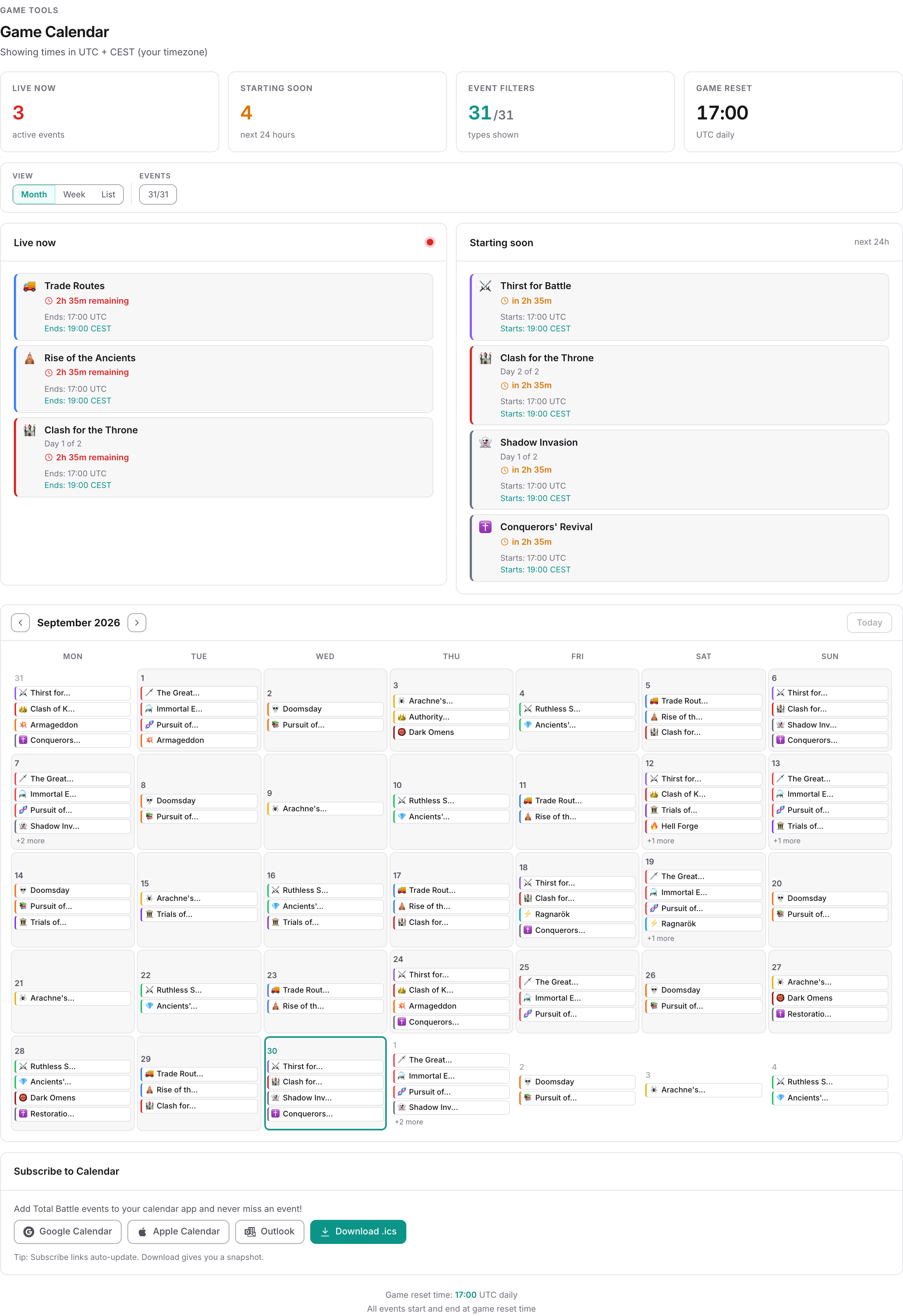
You want to know what is running right now, what starts before you next log in, and what time any of it happens where you live. One screen answers all three. Look for it under Game Tools → Event Calendar — the page it opens is headed Game Calendar, so the two names differ, but there is only one of them. Every member can open it, and it needs nothing set up.
One thing to get straight first: this calendar carries Total Battle's own game-wide events — the rotations that run for everybody, in every kingdom. Your clan's own events, the ones with point targets and penalties attached, are not here. Those live on Dashboards → Event Statistics.
The four tiles at the top
- Live now — how many events are running at this moment.
- Starting soon — how many begin within the next 24 hours.
- Event filters — how many event types you have ticked, out of the total available.
- Game reset — the daily reset time, in UTC.
Underneath, two panels repeat the first two tiles in detail. Live now lists each running event with a countdown to its end; Starting soon lists what begins in the next 24 hours with a countdown to its start. Both show the time in UTC on one line and in your own time zone on the next. An event that runs several days also shows which day it is on, as Day 2 of 5.
Month, Week and List
The View control switches between three ways of reading the same data, and Today jumps you back to the current date in whichever one you are in.
| View | What it gives you |
|---|---|
| Month | A grid you can page backwards and forwards a month at a time. Each day shows up to four events; if there are more, the day ends with a +2 more line. Hover an entry to see its full name. |
| Week | Seven days from Monday, one block each. Every event that starts or ends that day is listed with its exact time, so this is the view to use when you are planning around a hand-in deadline. |
| List | Upcoming Events (Next 30 Days) — a plain chronological run of what is coming, with today and tomorrow labelled. |
Filtering by event type
Click the counter in the Events filter to open the type panel. Types are grouped into 6-Day Rotation, 12-Day Rotation, 24-Day Events and Seasonal Events; click any chip to switch that type on or off, or use Select all and Clear all. Everything starts switched on.
An event that is cancelled or postponed is removed from the calendar rather than shown crossed out, so a schedule change looks like a disappearance. If something you expected has vanished, that is why.
Times, time zones and the reset
Wherever the page prints a time, it prints it twice: once in UTC, once in your own zone. Only the layout differs. The Live now and Starting soon panels stack the two, UTC on the first line and your zone on the second. The Week and List views put both on one line, as 17:00 UTC / 19:00 CEST. The Month grid prints no times at all — it shows names only, so switch to Week or List when the exact hour matters.
Your zone comes from Time Zone on MY → User & Player Settings. If you have never set it, the page falls back to UTC and the two readings will be identical — which is the usual cause of "the calendar is showing the wrong time".
The footer of the page states the rule that explains most of the schedule: events start and end at game reset time, 17:00 UTC. So an event whose last day is the 22nd does not run until midnight on the 22nd; it closes at 17:00 UTC that day. Read the times in the Week view rather than assuming a day boundary.
Putting it in your own calendar
The Subscribe to Calendar card at the bottom of the page has four buttons: Google Calendar, Apple Calendar, Outlook and Download .ics.
The first three set up a live subscription — your calendar app re-reads the feed on its own schedule, so new events appear without you doing anything. Download .ics gives you a one-off snapshot instead, which never updates. Unless you specifically want a frozen copy, use one of the subscribe buttons.
/calendar/feed.ics?category=24_day for one group, or /calendar/feed.ics?events=great_hunt,rise_of_ancient for named events. Paste that into your calendar app's "subscribe by URL" box.| Filter group on the page | Value to use in the feed address |
|---|---|
| 6-Day Rotation | category=6_day |
| 12-Day Rotation | category=12_day |
| 24-Day Events | category=24_day |
| Seasonal Events | category=seasonal |
The feed carries from one month back to three months ahead. Add &months=6 if you want it to reach further forward. It needs no login, which is why a calendar app can read it, and it contains nothing but these public game events — no clan or player information travels with it.
What is on a different page
- Mini-events — the short, frequent in-game bonuses are their own page, Game Tools → Mini-Event Calendar, with a live countdown and columns for several time zones.
- Your clan's events — anything with point or chest targets attached to it is a clan event. Members read them on Dashboards → Event Statistics. Setting them up, choosing which chests count and what happens when one closes are covered end to end in the guide How to track events.
Common questions
The calendar shows a different time to the one I see in the game. Which is right?
Both, usually — you are comparing two zones. Every time on this page is given in UTC and in your own zone: stacked on two lines in the Live now and Starting soon panels, and side by side on one line in the Week and List views. If the two readings are identical, your account has no time zone set and is defaulting to UTC. Set Time Zone on MY → User & Player Settings and the second reading becomes your local time.
The other half of the answer is the reset. Events begin and end at game reset time, 17:00 UTC, not at midnight, so an event dated to a particular day does not run for the whole of that day.
My clan's event is not on this calendar.
It will not be. This page carries only Total Battle's own game-wide events. Clan events — the ones with point targets, chest requirements and penalties — are a separate thing entirely. As a member you read them on Dashboards → Event Statistics; clan admins create and close them under Clan Management → Events.
I ticked only a few event types, but my subscribed calendar shows all of them.
That is expected. The Subscribe to Calendar buttons always hand your calendar app the complete feed — the ticks you made on the page are not carried across, because they are stored in your browser rather than on your account.
To subscribe to a subset, build the address by hand: your portal address followed by /calendar/feed.ics?category=24_day, or /calendar/feed.ics?events=great_hunt,rise_of_ancient for specific events. Add that URL through your calendar app's own "subscribe by URL" option.
How far ahead does the calendar go?
The Month view will page forward as far as you like, but it can only show what has been scheduled — several months are normally in place at any time. The List view is fixed at the next 30 days. A subscribed calendar feed carries three months ahead by default, and you can extend it by adding &months=6 to the feed address.
Related