Docs → Advanced Features → AI Members Insights
🤖 AI Members Insights
Read the eight scores on the insights page, see which settings produced them, and change the thresholds that decide who is flagged as a boot candidate.
You have a member you suspect is drifting, or a roster you need to trim, and you want something better than a feeling. Clan Management → AI Members Insights — the page itself is headed Player Insights — takes what the portal already records about every member — chests, cycles, events, penalties, growth, CP runs — and reduces it to eight numbers out of 100 and one rating.
What is on the page
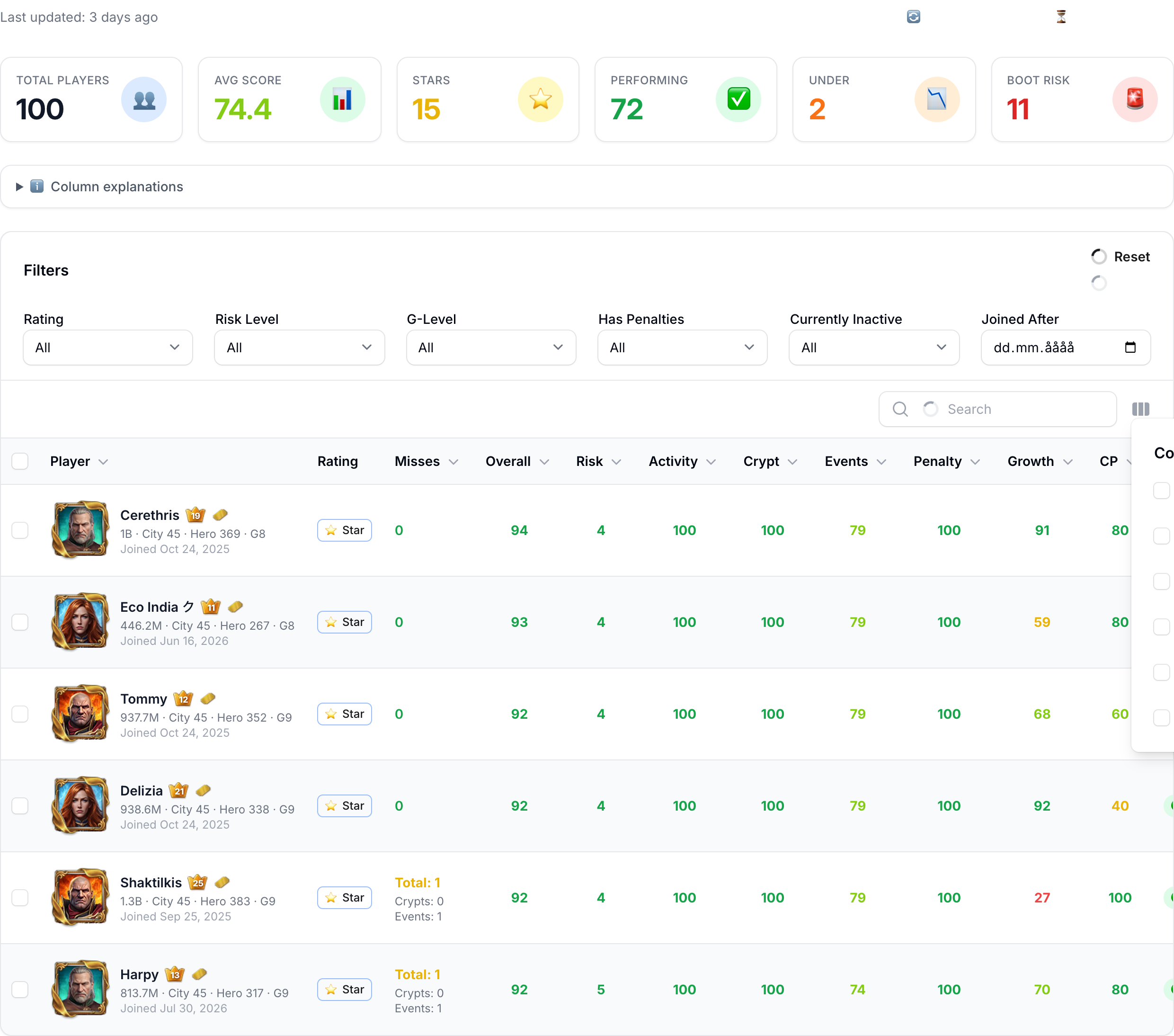
Six figures across the top: Total Players, Avg Score, Stars, Performing, Under and Boot Risk. Performing counts overperformers and on-track members together, so it is always the largest of the three rating counts.
Below that, one row per member, sorted by Overall from highest down. The name carries the member's might, city level, hero level, G-level and join date, plus VIP and Gold Pass badges.
- Always visible: Player, Rating, Misses, Overall, Risk and Status.
- Hidden until you switch them on with the column toggle: Activity, Crypt, Events, Penalty, Growth and CP. These six are what Overall is built from, so turn them on the moment a rating surprises you.
- Misses is two counters added together: cycles missed in a row, and events missed in a row. It is not a score — it is a raw count, and it is the single most useful column on the page.
- Status reads green up to two days without a claimed chest, amber from three, red from seven.
Filters sit above the table: Rating, Risk Level, G-Level, Has Penalties, Currently Inactive and Joined After. They are remembered between visits.
The eight scores, and their default settings
| Score | What it measures | Defaults out of the box |
|---|---|---|
| Activity | Separate days on which the member claimed at least one chest, over the lookback window. | 30-day window · 28 active days scores 100 · each consecutive inactive day past the third costs 10 · a streak of 7 days adds 10 |
| Chest Cycle | Cycle completion rate, current unbroken streak, and points against requirement. | 30-day window · weighted 40 / 30 / 30 · 5 clean cycles in a row score full marks on the streak part |
| Events | Turning up, meeting the point goal, meeting the chest goal. | 30-day window · weighted 20 / 40 / 40 · 5 events counts as full participation |
| Penalty | Penalties received in the window. Starts at 100 and falls. | 30-day window · −20 per penalty · 0 at 5 penalties |
| Growth | Might and hero-level change, compared against peers in the same bracket rather than in absolute terms. | 30-day window · might and hero worth 50 each · a member with no history yet scores 50 |
| CP | CP runs joined in the window. | 30-day window · 10 runs scores 100 |
| Overall | Weighted average of the six above. Higher is better. | Crypt 25 · Activity 20 · Events 20 · Penalty 15 · Growth 10 · CP 10 |
| Risk | The same six categories, mostly inverted — low activity means high risk. Higher is worse. | Crypt 30 · Activity 25 · Penalty 25 · Events 20 · Growth and CP switched off |
The Risk Level filter uses fixed bands: Critical from 80, High 60–79, Medium 40–59, Low below 40.
How the rating is decided
| Badge in the Rating column | Full name, as the filter writes it | Overall score |
|---|---|---|
| ⭐ Star | Star Performer | 90–100 |
| 📈 Over | Overperformer | 70–89 |
| ✅ On Track | On Track | 50–69 |
| 📉 Under | Underperformer | 25–49 |
| 🚨 Boot | Boot Candidate | 0–24 |
The badges in the table are abbreviated — the row of a member you would drop reads 🚨 Boot, not Boot Candidate. The full names appear only in the Rating filter, so search the filter, not the column, when you are looking for a particular rating.
Three things can override that table:
- The risk cap. A member whose Risk reaches 80 is held down to Underperformer however good their Overall is. Both the threshold and the ceiling rating are yours to change.
- The new-member grace period. For their first 7 days in the clan, a member is not rated at all and shows as On Track.
- Your own override rules. On the Override Rules tab you can write rules such as "three consecutive crypt misses ⇒ Boot Candidate", combining raw counts and calculated scores, each with its own priority and an active switch.
Changing what any of it means
The menu entry is AI Insight Settings; the page itself is headed Player Insight Settings. Twelve tabs: General, Activity, Crypt, Events, Penalties, Growth, CP, Overall Score, Risk Score, Rating Thresholds, Override Rules and Exemptions.
On Overall Score and on Risk Score, the weights of the enabled categories must each total exactly 100. Switch a category off and its weight stops counting.
Three more tabs have the same rule inside them, and they catch people out because the article you are holding is not the only place the number 100 appears:
- Crypt — completion, current streak and points against requirement must total 100 (they start at 40 / 30 / 30).
- Events — participation, point goal and chest goal must total 100 (they start at 20 / 40 / 40).
- Growth — might and hero must total 100 (they start at 50 / 50).
If any of those five totals is anything but 100, nothing on the page is saved — not even the tabs you got right. The message names the tab and tells you what the total currently is, so fix that one and press save again.
Save Settings stores the change. It does not touch the numbers already on the insights page — those are yesterday's stored results. Go back and press Regenerate Insights to see the effect.
When the numbers are rebuilt
Every clan is rebuilt automatically each night at 02:00 UTC. The line above the table tells you how long ago your clan's last rebuild was.
Regenerate Insights rebuilds every member in the clan immediately, while you wait, and reports how many records it created and updated. Results are kept for 90 days by default, which is what the per-member trend arrows are drawn from.
Looking at one member
The AI button on any row opens that member's own page, with nine tabs: Summary, Calculations, Activity, Growth, Crypting, Events, Penalties, CP Runs and Export.
Calculations is the one to open in an argument — it shows the sums, not just the answers. Export produces a plain-text report you can paste into a chat group or a direct message.
To take several members at once, tick their rows and use Export Selected. The Markdown Export box that opens splits the text at 1,000 characters so each piece fits in one in-game message, and Copy All puts it on your clipboard.
Members who are exempt from penalties
For how penalties themselves are produced, configured and removed, see the guide Understand the penalty system.
Common questions
Is a language model reading my clan's data?
No. The word AI is in the page name, but nothing on it is written or judged by a language model. Every figure is a calculation over records the portal already holds — chests claimed, cycles completed, events met, penalties received, might and hero level over time, CP runs joined — combined using the weights on your own AI Insight Settings page.
That is a useful thing to know when a member disputes a rating: the answer is always visible on the Calculations tab of their insight page.
I changed a setting and the scores did not move. Why?
Because the table shows the last stored result, not a live calculation. Settings changes only take effect the next time the numbers are rebuilt.
Press Regenerate Insights on the insights page to rebuild immediately, or wait for the automatic rebuild at 02:00 UTC.
A member has a high Overall score but is rated Underperformer. Is that a bug?
Almost certainly not. Two things can pull a rating down below what the Overall score suggests.
- Their Risk score reached 80, which caps the rating at Underperformer by default.
- One of your own Override Rules matched them — for instance a rule on consecutive misses.
Switch on the six category columns to see which one is dragging, and check the Rating Thresholds and Override Rules tabs.
Who can see this page — and can members see their own rating?
This page is for clan admins and owners of the clan you are currently acting in. Ordinary members cannot open it, cannot open AI Insight Settings, and cannot see the per-member breakdown tabs.
The ratings themselves are not private. Clan → Members — the page headed Clan Members — is open to every signed-in member of your clan, and it carries an AI Rating column with the same badge — including 🚨 Boot — a Score and Risk caption under it, and a filter on rating. So a member can see their own rating, and everybody else's.
Assume anything the rating says is readable by the whole clan, and have the conversation about a boot candidate before the badge does it for you.
Related